This article explains how to enable and configure Xdebug with PHP 8 and later versions.
When upgrading from PHP 7 to PHP 8, Xdebug transitioned from version 2 to 3. Configuration options changed significantly between these versions.
Installing Xdebug
To install Xdebug, on Windows (I recommend using WSL) or Linux, install the package for your PHP version: for instance, sudo apt install php8.4-xdebug on Ubuntu and Debian distributions.
The easiest way to obtain the exact installation steps for your environment is using the official wizard: https://xdebug.org/wizard.
Simply paste the output of phpinfo() (or terminal output from php -i) to generate tailored instructions.
Xdebug enhances var_dump() output and, most importantly, enables step-by-step debugging with IDEs such as VS Code or PhpStorm.
Configuring Xdebug
Configure Xdebug by editing the relevant ini file. If using PHP-FPM, the configuration file is typically located under /etc/php/8.4/fpm/conf.d/20-xdebug.ini -> /etc/php/8.4/mods-available/xdebug.ini.
Add the following settings:
xdebug.log_level = 0
xdebug.start_with_request = yes
xdebug.mode = debug,develop
xdebug.client_port = 9003
xdebug.client_host = 127.0.0.1
Setting log_level = 0 prevents annoying warnings in CLI mode (such as Xdebug: [Step Debug] Could not connect to debugging client...) that can interfere with command-line scripts.
This configuration applies to Xdebug 3 on PHP 8 and newer.
Step-by-Step Debugging in VS Code
Create a .vscode/launch.json file in your project with the following configuration:
{
   "version": "0.2.0",
   "configurations": [
       {
           "name": "Listen for Xdebug",
           "type": "php",
           "request": "launch",
           "hostname": "localhost",
           "port": 9003,
           "xdebugSettings": {
               "max_children": 256,
               "max_data": 1024,
               "max_depth": 3
           }
       }
   ]
}
Press F5 in VS Code to start listening on port 9003.
Now trigger execution in PHP, whether from the terminal CLI or by making an HTTP request through your web server.
To verify the setup, set a breakpoint in a simple test.php script and run it from the CLI.
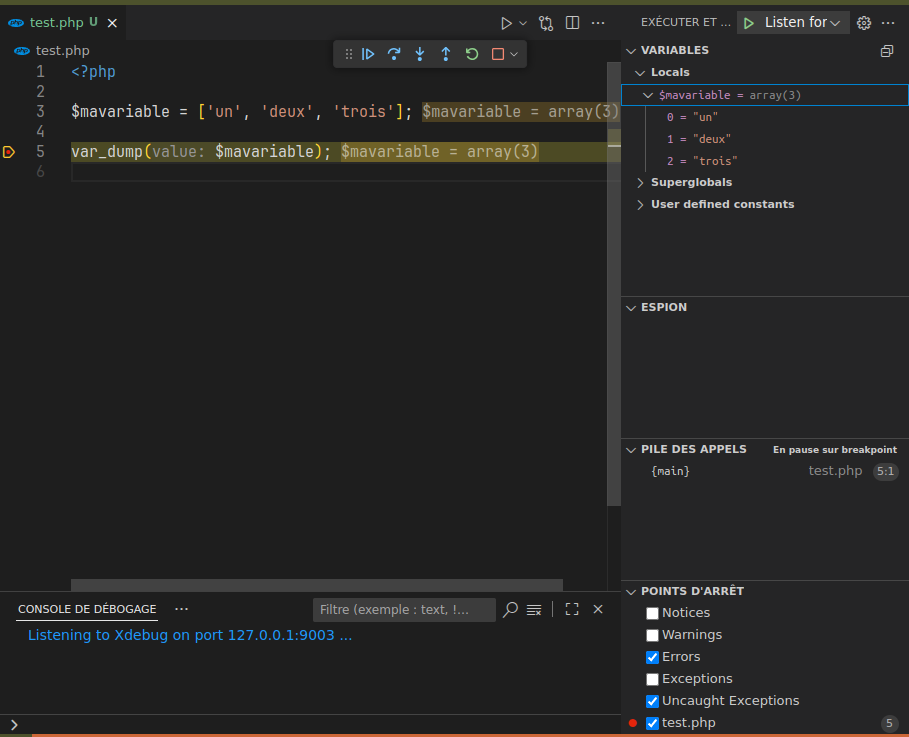
You are now ready to debug your code step by step.
If your breakpoint is not hit, verify firewall rules and ensure that the port (9003) matches between your IDE listener and your PHP ini configuration.
Happy debugging!